Download IP Scanner for Windows: Safe Setup Steps
Get the installer from a trusted link, check the file before opening it and finish your first scan in minutes.
Read guideIP Scanner finds every active device on your local network in seconds and lists its IP address, MAC address, name and manufacturer, with quick access to shared folders, Remote Desktop and remote power controls.
Advanced IP Scanner by Famatech · Windows 11, 10, 8 and 7 · Free
A clear picture of the free Windows network scanner offered on this page and what it does on your local network.
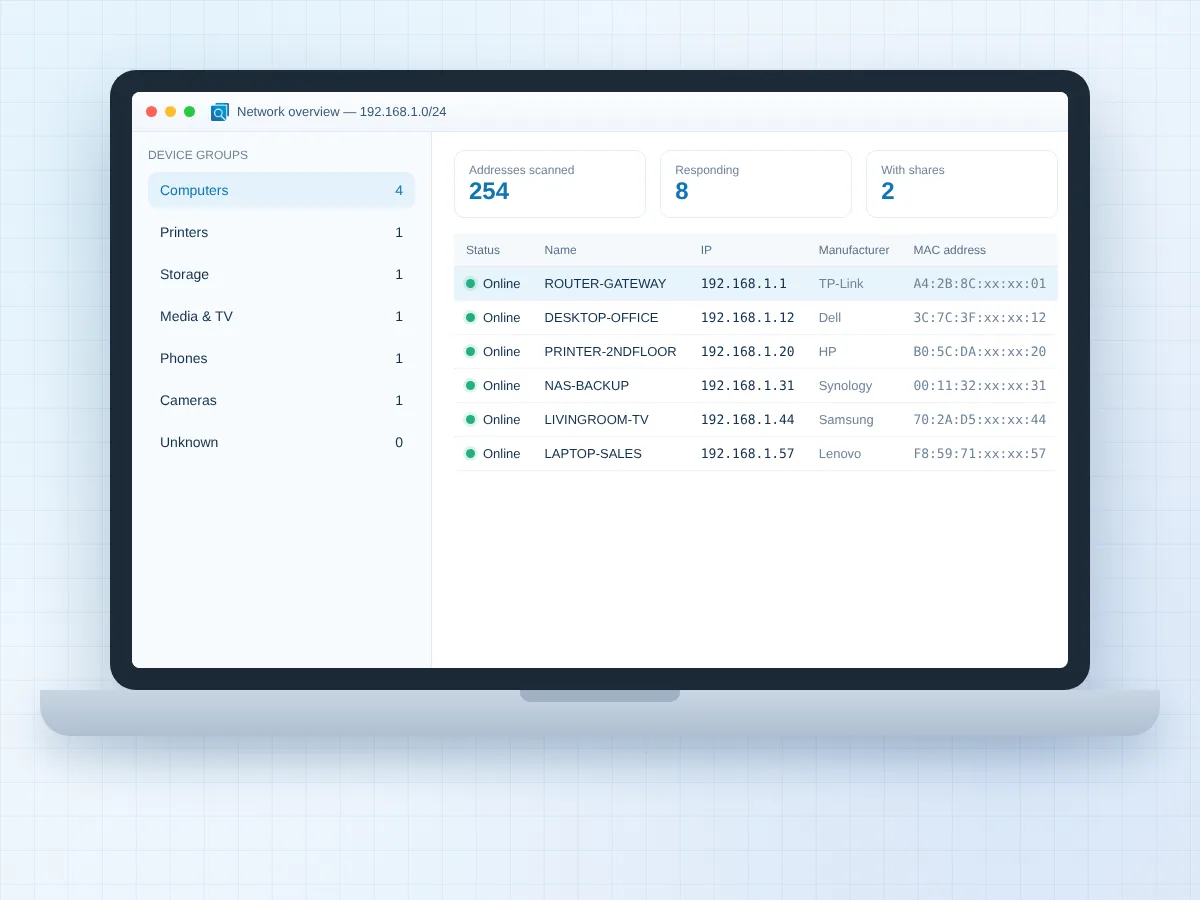
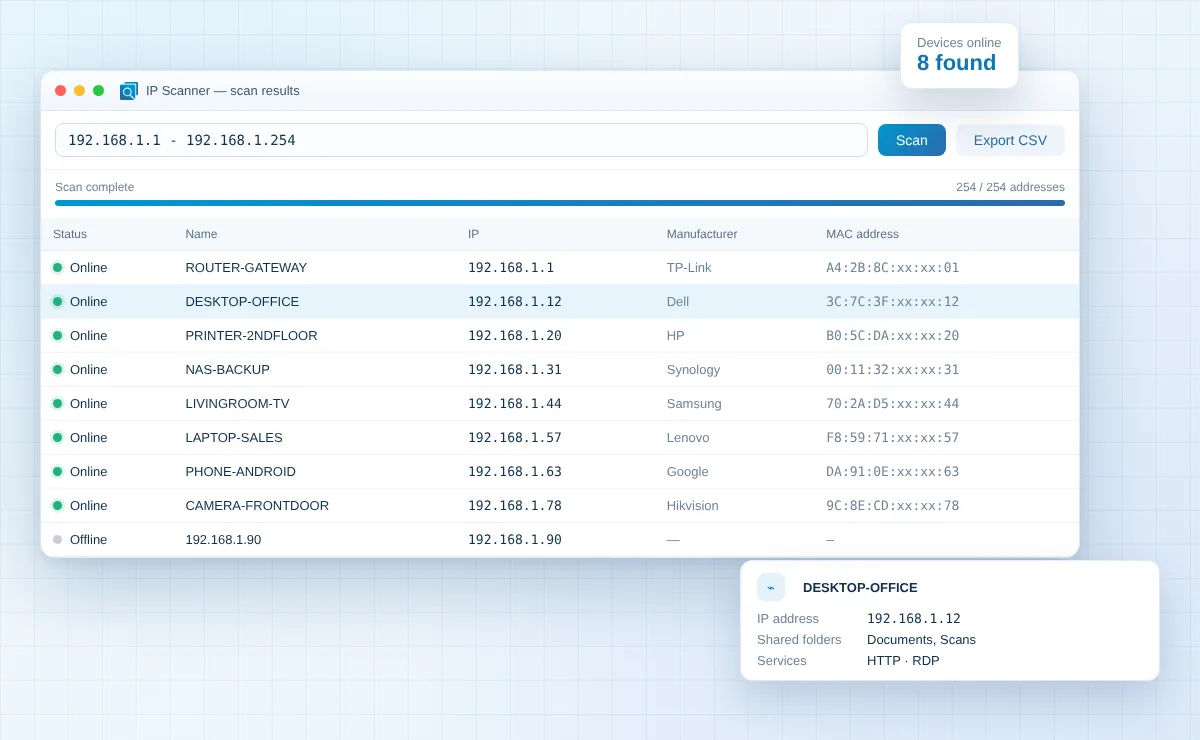
IP Scanner, in the form offered here, is Advanced IP Scanner, a free Windows program from Famatech, the company behind the Radmin remote control software. It checks a range of addresses on your local network and shows which devices are online, from computers and printers to routers, storage drives, TVs and cameras.
Each result comes with practical details such as the device name, IP address, MAC address and manufacturer. From the same list you can open shared folders, reach web interfaces, start Remote Desktop or Radmin sessions and switch Windows computers on or off remotely.
Eight practical tools packed into one free scanner, each focused on finding devices quickly and acting on them right away.
Checks every address in your chosen range and lists responding wired and Wi-Fi devices within seconds on typical home networks.
Shows the hardware address of each adapter, which helps you tell devices apart and match them with your router list.
Displays folders shared by network computers and opens them in File Explorer with a click, subject to share permissions.
Spots devices with web or FTP services, so you can open a router, printer or NAS admin page straight from the results.
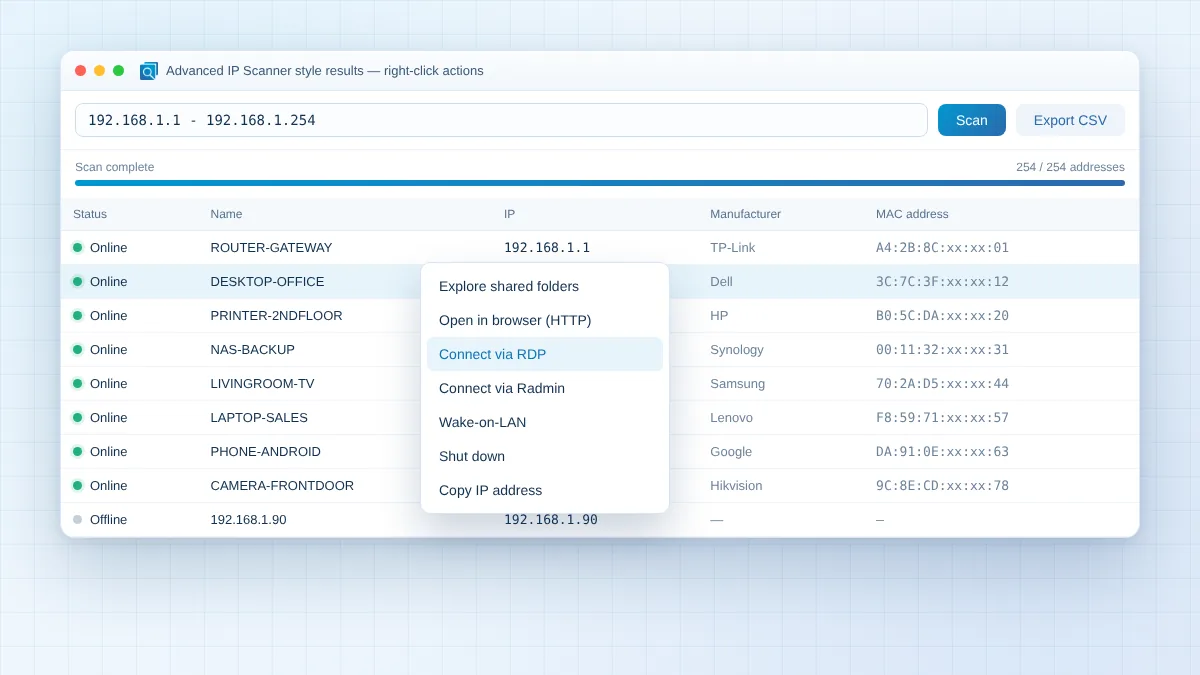
Starts a Remote Desktop session or a Radmin connection to a listed computer without typing its address again.
Wakes compatible computers with Wake-on-LAN and shuts down Windows machines you have administrator rights on.
Saves the results as a CSV file for spreadsheets, inventories or before-and-after comparisons of your network.
Starts without a permanent installation, which is handy on shared PCs or when you only need a quick one-off scan.
Four short steps take you from the download to a complete list of devices on your network.
Download the free setup file and open it on a Windows 11, 10, 8 or 7 computer.
Install keeps the scanner on your PC, while Run starts it straight away with nothing installed.
The scanner suggests your current network range, such as 192.168.1.1 - 192.168.1.254, which you can adjust.
Press Scan, review the device list and right-click any entry to open shares, connect or export.
Supported systems for the Windows download on this page, plus sensible options for computers and phones it does not cover.
| Platform | Status | Notes |
|---|---|---|
| Windows 11 | Supported | Listed by Famatech as compatible; Install or Run both available. |
| Windows 10 | Supported | Listed as compatible; the most common setup for home and office scans. |
| Windows 8 / 7 | Supported | Listed as compatible; keep older systems patched before scanning. |
| macOS | Use an alternative | No macOS edition; Angry IP Scanner runs on macOS as an open-source option. |
| Linux | Use an alternative | No Linux edition; Angry IP Scanner or command-line tools cover Linux. |
| Android and iPhone | Use an alternative | No mobile edition; Wi-Fi scanner apps from the app stores fill this gap. |
Real situations where a quick network scan saves time, from a busy family Wi-Fi to a small office with shared printers.
Families often have more connected gadgets than they realise. A quick scan lists phones, consoles, smart speakers and TVs, so you can spot anything you do not recognise and confirm it against your router.
Small offices rarely have a full asset system. A scan plus CSV export gives you a dated list of computers, printers and network storage that you can keep in a spreadsheet and compare later.
Devices with web panels often hide behind DHCP addresses that change. The scanner shows their current IP and offers a direct HTTP or HTTPS link to their settings page.
IT staff can go straight from the device list to an RDP or Radmin session and switch machines on with Wake-on-LAN before after-hours maintenance.
When two devices claim one address, connections drop at random. Scanning the range reveals which device currently answers on that IP and which manufacturer it belongs to.
The value goes beyond a list of addresses: it removes guesswork from everyday network tasks.
Know what is on your network before something goes wrong.
Most network problems start with a device nobody remembered. A regular scan keeps your list current, shortens support calls and makes changes such as replacing a router or renaming Wi-Fi far less stressful.
Download NowGet a full view of your network without agents, accounts or configuration on the devices themselves.
Find a device address while on a support call instead of logging in to the router and scrolling through tables.
Scanning, shared folders, remote sessions and power control sit in one window rather than separate utilities.
A free download with no trial timer suits home users, students and small teams with tight budgets.
CSV exports create simple records that help when auditing, onboarding staff or planning upgrades.
Clear columns and right-click actions mean you do not need command-line skills to understand your network.
Get the free Advanced IP Scanner setup file from the official Famatech download server and start scanning in a few minutes.
The button below opens the official setup file directly. After it finishes, open the file, choose Install or Run and confirm your network range to begin.
Download IP ScannerFile: Advanced_IP_Scanner_2.5.4594.1.exe · Source: download.advanced-ip-scanner.com. Scan only networks you own or manage.
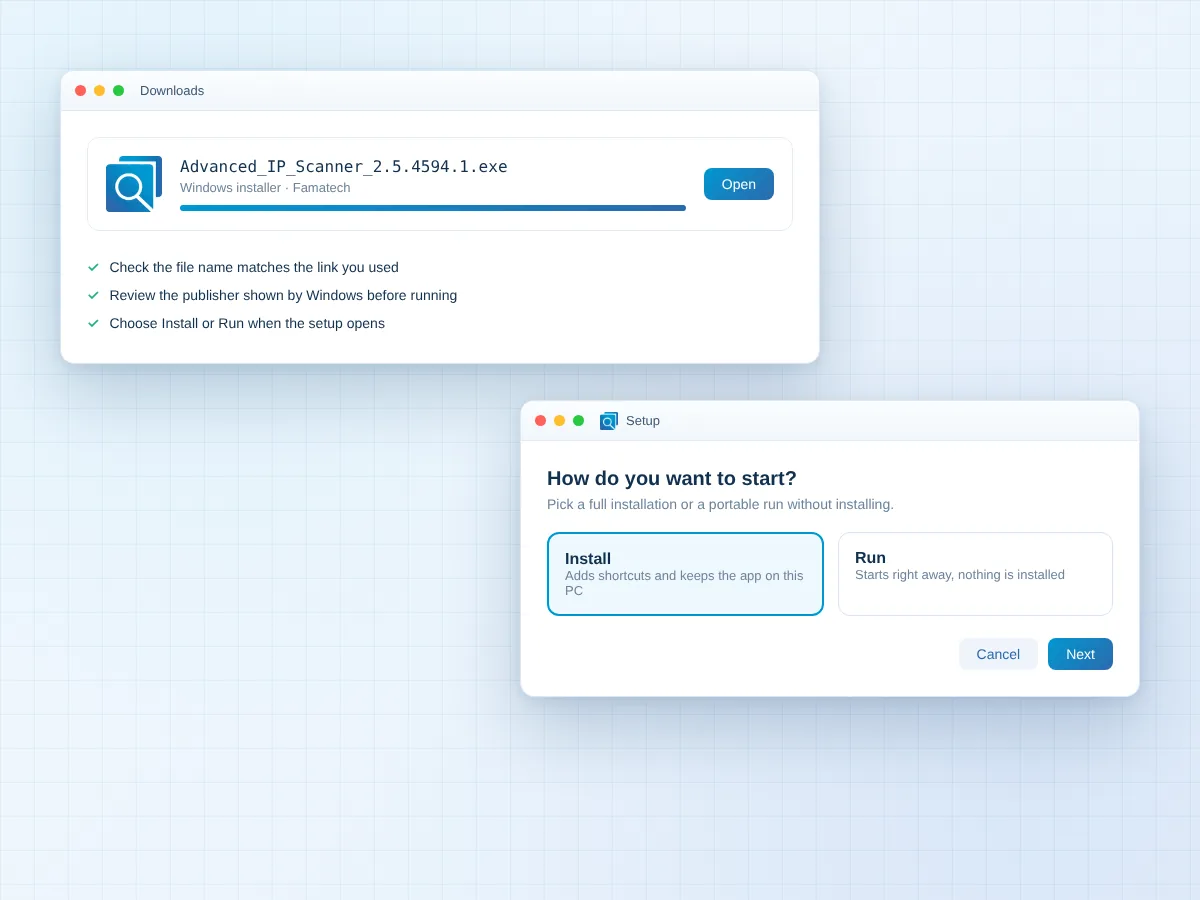
A clean setup on Windows takes only a few clicks, whether you keep it installed or run it as a portable tool.
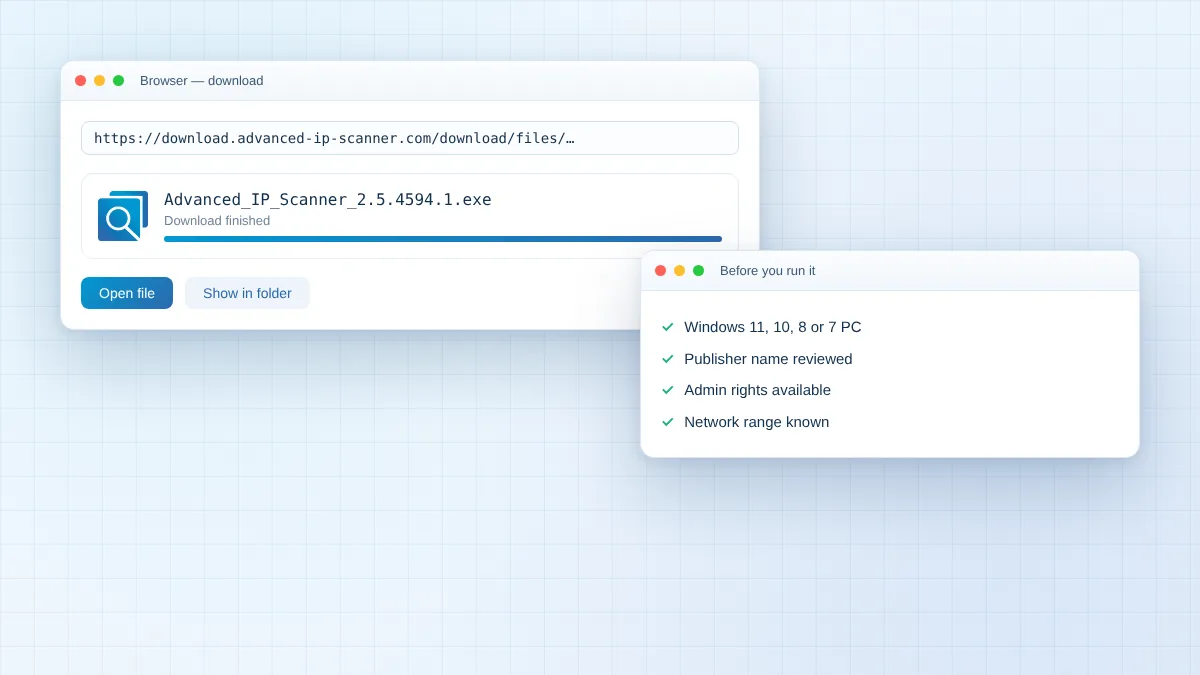
Find Advanced_IP_Scanner_2.5.4594.1.exe in your Downloads folder and double-click it.
Check the publisher in the User Account Control window, then allow the setup to continue.
Choose Install for permanent use or Run for a portable session, then accept the licence terms.
The scanner fills in your local range automatically; edit it if your devices use another subnet.
Press Scan and wait a moment while the results list fills with devices that respond.
Enter any address from your network and its subnet size to get the exact range to paste into the scanner, worked out right here in your browser.
Enter your IPv4 address and subnet size, then click Calculate Range to see your network details here.
Private (LAN) range. Calculations run locally in this page and nothing you type is sent anywhere.
Simple habits that keep the download clean and your network details in the right hands.
Download from the Famatech domain linked on this page rather than mirrors or pop-up ads offering repackaged installers.
Windows shows the publisher before setup runs. Continue only when the name and file match what you downloaded.
Limit scans to networks you own or manage with permission, especially on shared office or campus connections.
Use strong passwords for RDP and Radmin accounts and disable remote access on machines that do not need it.
Apply Windows updates so file sharing, Remote Desktop and network drivers have the latest security fixes.
Treat exported device lists as sensitive records and store them where only trusted people can open them.
A balanced look at where the free scanner shines and where another tool may suit you better.
The build linked on this page and how to stay on the current release.
The download button points to the setup file named Advanced_IP_Scanner_2.5.4594.1.exe, which identifies build 2.5.4594.1 of Advanced IP Scanner. Famatech publishes the setup file on its own download server, and newer builds, when released, replace older ones there.
Before a big network change, it is worth checking the official Advanced IP Scanner website for a newer build. Updating is simple: download the latest setup file and choose Install over the existing copy, or launch the newer file in Run mode.
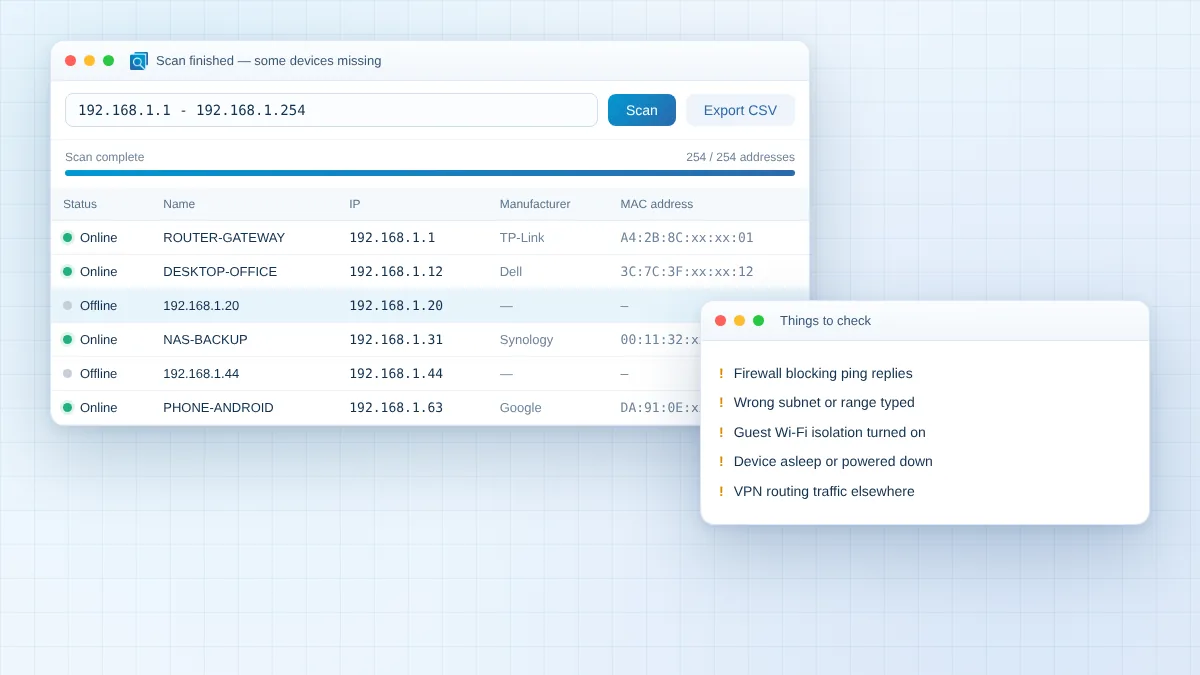
Quick fixes for the problems people meet most often when scanning a home or office network.
Its firewall may ignore ping and scan requests. Allow file and printer sharing or ICMP replies on that device, then scan again.
The range may not match your subnet. Run ipconfig, check the address and mask, then use the range planner above to set the correct range.
Guest networks and client isolation keep devices apart. Connect your PC to the main Wi-Fi, not the guest network, and wake the phone screen.
A VPN can send traffic away from your local network. Disconnect it or enable local network access in the VPN app before scanning.
Network discovery or file sharing may be off, or your account lacks permission. Turn on sharing in Windows network settings and sign in with valid credentials.
Re-download the file from the official link, confirm the publisher in the prompt and make sure your account can approve administrator requests.
In-depth articles on downloading, using and fixing network scanners on every kind of device.
Get the installer from a trusted link, check the file before opening it and finish your first scan in minutes.
Read guideA close look at device discovery, remote actions, export options and where this free Windows scanner falls short.
Read guideMissing printers, phones or TVs in your results? Work through the usual causes, from firewalls to subnet mistakes.
Read guideStraight answers to the questions people ask most about downloading and using a network IP scanner.